



[ Control Claude Code from your phone ]
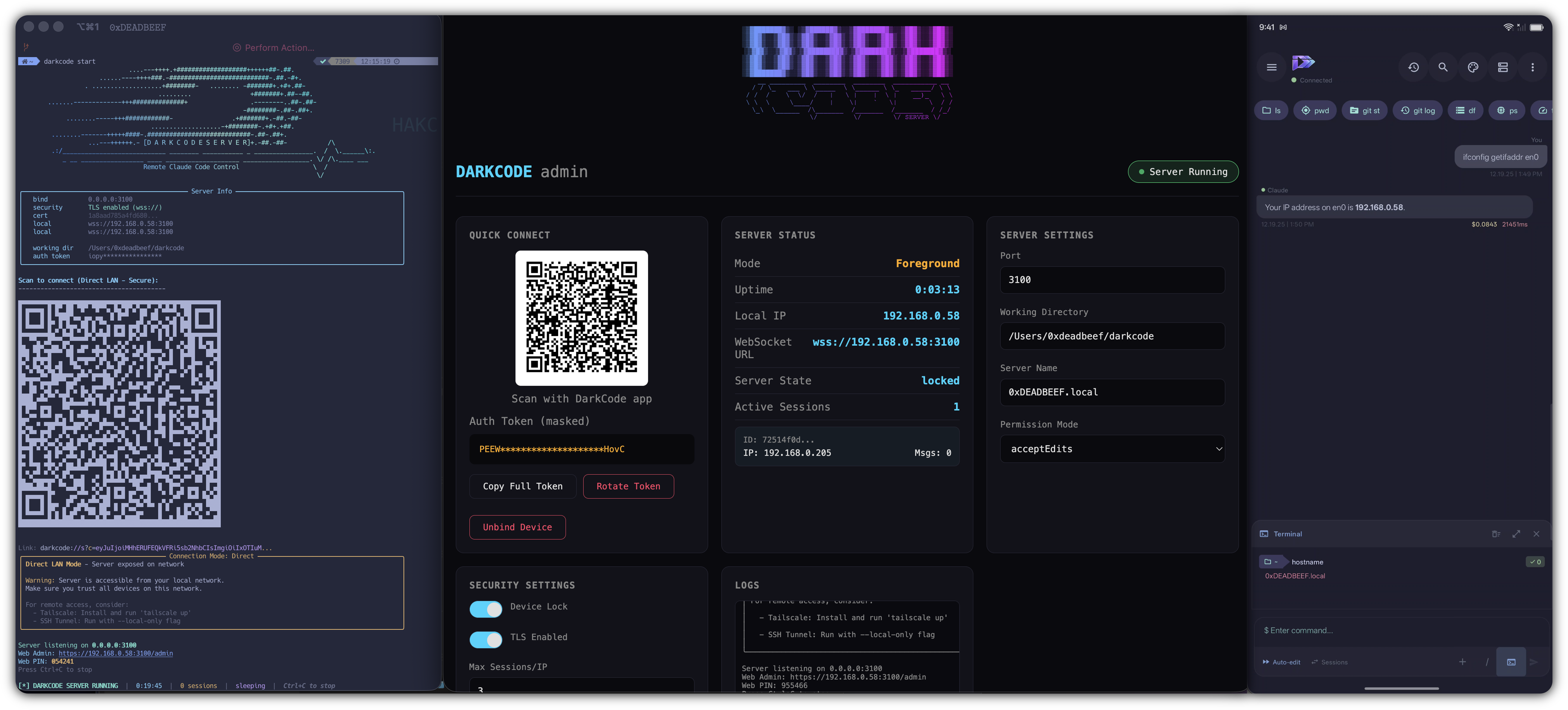
Step 1: Install via pip
pip install darkcode-serverStep 2: Start the server
darkcode startStep 3: Connect with the Android app
- Download DarkCode from Google Play
- Scan the QR code displayed in your terminal
- Start chatting with Claude Code from your phone
That's it! The QR code connects everything automatically.
This is a companion server for the DarkCode Android app. The server is useless without the mobile app installed on your Android device.

Download the DarkCode app: Google Play Store
flowchart LR
    subgraph Required["Required Components"]
        APP["DarkCode Android App\n(Google Play)"]
        SERVER["DarkCode Server\n(this package)"]
        CLAUDE["Claude Code CLI\n(Anthropic)"]
    end

    APP <-->|WebSocket| SERVER
    SERVER <-->|stdin/stdout| CLAUDE

    style APP fill:#FF10F0,stroke:#333,color:#000
    style SERVER fill:#7928CA,stroke:#333,color:#fff
    style CLAUDE fill:#00FF41,stroke:#333,color:#000
DarkCode Server is a secure WebSocket bridge that lets you remotely control Claude Code CLI from your Android device. Run Claude on your dev machine, interact from anywhere.
You need:
- The DarkCode Android app installed on your phone
- Claude Code CLI installed on your computer
- DarkCode Server (this package) running on your computer
flowchart LR
    A[Android App] <-->|WebSocket\nws/wss/ssh| B[DarkCode Server]
    B <-->|stdin/stdout| C[Claude Code CLI]

    style A fill:#FF10F0,stroke:#00D9FF,color:#000
    style B fill:#7928CA,stroke:#00D9FF,color:#fff
    style C fill:#00FF41,stroke:#00D9FF,color:#000
- Multiple Connection Modes - Direct LAN, Tailscale VPN, or SSH Tunnel
- Enterprise Security - TLS encryption, mTLS device binding, token rotation
- Guest Access Codes - Share access with friends (time-limited, use-limited)
- Device Binding - Lock server to your phone, reject all others
- Sleep Mode - Auto-sleep after idle, wake on reconnect
- QR Code Setup - Scan to connect, zero manual config
- Daemon Mode - Background service with logging
- Rate Limiting - Brute-force protection with SQLite persistence
flowchart TB
    subgraph Phone["Android Device"]
        APP[DarkCode App]
    end

    subgraph Network["Connection Layer"]
        direction LR
        LAN[Direct LAN]
        TS[Tailscale VPN]
        SSH[SSH Tunnel]
    end

    subgraph Server["DarkCode Server"]
        WS[WebSocket Handler]
        AUTH[Auth Manager]
        SEC[Security Layer]
        GUEST[Guest Codes]
        RATE[Rate Limiter]
    end

    subgraph Claude["Claude Code"]
        CLI[CLI Process]
        STDIN[stdin]
        STDOUT[stdout]
    end

    APP --> LAN & TS & SSH
    LAN & TS & SSH --> WS
    WS --> AUTH
    AUTH --> SEC
    SEC --> GUEST
    SEC --> RATE
    WS <--> STDIN
    STDOUT <--> WS
    STDIN <--> CLI
    CLI <--> STDOUT

    style APP fill:#FF10F0,stroke:#333,color:#000
    style WS fill:#7928CA,stroke:#333,color:#fff
    style CLI fill:#00FF41,stroke:#333,color:#000
Download from Google Play: DarkCode for Android
Follow the instructions at github.com/anthropics/claude-code
# via pip (recommended)
pip install darkcode-server

# via pipx (isolated environment)
pipx install darkcode-server

# from source
git clone https://github.com/haKC-ai/DarkCodeAgent.git
cd DarkCodeAgent/darkcode-server
pip install -e .Run the interactive setup wizard to configure everything:
darkcode setupThe wizard will:
- Generate a secure auth token
- Detect your network interfaces (LAN, Tailscale)
- Set your default working directory
- Display a QR code to scan with the Android app
Scenario 1: Quick start (foreground)
darkcode startStarts the server in your terminal. Press Ctrl+C to stop. A QR code is displayed for easy connection.
Scenario 2: Run in background (daemon mode)
darkcode daemon -bRuns as a background service. Logs are saved to ~/.darkcode/logs/.
Scenario 3: Specific project directory
darkcode start --working-dir /path/to/your/projectClaude Code will operate in the specified directory.
Scenario 4: Local-only for SSH tunneling
darkcode start --local-onlyBinds to localhost only. Connect via SSH tunnel for maximum security.
Scenario 5: Custom port
darkcode start --port 8080- Open the DarkCode app on your Android device
- Tap "Add Server"
- Scan the QR code displayed in your terminal (or enter details manually)
- Start chatting with Claude Code from your phone
darkcode status    # Check if server is running
darkcode stop      # Stop the daemon
darkcode qr        # Show QR code again
darkcode config # View current configurationAll settings via environment variables or ~/.darkcode/.env:
| Variable | Default | Description |
|---|---|---|
DARKCODE_PORT |
3100 | WebSocket port |
DARKCODE_TOKEN |
(generated) | Auth token |
DARKCODE_WORKING_DIR |
cwd | Claude's working directory |
DARKCODE_LOCAL_ONLY |
false | Localhost only (SSH tunnel mode) |
DARKCODE_DEVICE_LOCK |
true | Lock to first device |
DARKCODE_IDLE_TIMEOUT |
300 | Seconds before sleep (0=disabled) |
DARKCODE_TLS_ENABLED |
false | Enable WSS encryption |
DARKCODE_MTLS_ENABLED |
false | Require client certificates |
flowchart LR
    subgraph Client["Client"]
        REQ[Request]
    end

    subgraph Security["Security Pipeline"]
        RATE[Rate Limiter]
        TLS[TLS/mTLS]
        TOKEN[Token Auth]
        DEVICE[Device Lock]
        GUEST[Guest Code]
    end

    subgraph Server["Server"]
        ALLOW[Allow]
        DENY[Deny]
    end

    REQ --> RATE
    RATE -->|pass| TLS
    RATE -->|blocked| DENY
    TLS -->|valid| TOKEN
    TLS -->|invalid| DENY
    TOKEN -->|valid| DEVICE
    TOKEN -->|invalid| GUEST
    GUEST -->|valid| ALLOW
    GUEST -->|invalid| DENY
    DEVICE -->|bound| ALLOW
    DEVICE -->|unbound| DENY

    style DENY fill:#ff4444,stroke:#333,color:#fff
    style ALLOW fill:#00FF41,stroke:#333,color:#000
# Enable TLS encryption
darkcode security tls --enable

# Enable mTLS (client certificates)
darkcode security tls --enable --mtls

# Generate client cert for device
darkcode security client-cert my-phone

# View/unblock rate-limited IPs
darkcode security blocked
darkcode security blocked --unblock 192.168.1.100

# Manually rotate auth token
darkcode security rotate-tokenShare access with friends using time-limited codes:
sequenceDiagram
    participant Owner
    participant Server
    participant Guest

    Owner->>Server: darkcode guest create "Friend"
    Server-->>Owner: Code: ABC123 (24h, unlimited uses)
    Owner->>Guest: Share code ABC123
    Guest->>Server: Connect with guest_code: ABC123
    Server->>Server: Verify code validity
    Server->>Server: Check expiration & use count
    Server-->>Guest: Access granted (read-only or full)
# Create a guest code (expires in 24h)
darkcode guest create "John's phone"

# Create with limits
darkcode guest create "Demo" --expires 1 --max-uses 3

# Read-only access (view only, no commands)
darkcode guest create "Viewer" --read-only

# List all codes
darkcode guest list

# Revoke a code
darkcode guest revoke ABC123

# Generate QR for guest
darkcode guest qr ABC123darkcode # Interactive menu
darkcode setup # Setup wizard
darkcode start # Start server (foreground)
darkcode daemon # Start as daemon
darkcode daemon -b # Start daemon in background
darkcode stop # Stop daemon
darkcode status # Show server status
darkcode qr # Display connection QR code
darkcode config # View configuration
darkcode unbind # Unbind current device
darkcode security # Security commands (tls, blocked, rotate-token)
darkcode guest # Guest code commands (create, list, revoke, qr)
flowchart TB
    subgraph Direct["Direct LAN"]
        D1[Phone] -->|WiFi| D2[Server]
        D3["Fastest, works offline"]
    end

    subgraph Tailscale["Tailscale VPN"]
        T1[Phone] -->|Mesh VPN| T2[Server]
        T3["Works anywhere, auto-detected"]
    end

    subgraph SSH["SSH Tunnel"]
        S1[Phone] -->|SSH -L| S2[localhost:3100]
        S2 -->|localhost| S3[Server]
        S4["Most secure, localhost-only"]
    end

    style D3 fill:none,stroke:none
    style T3 fill:none,stroke:none
    style S4 fill:none,stroke:none
Connect over local WiFi. Fastest, works offline.
Connect via Tailscale mesh VPN. Works anywhere, auto-detected if installed.
Most secure. Run server localhost-only, tunnel from phone:
darkcode start --local-only
# Then SSH tunnel from phone: ssh -L 3100:localhost:3100 user@host~/.darkcode/
├── .env # Configuration
├── darkcode.pid # Daemon PID file
├── security.db # Rate limiting database
├── tokens.db # Token rotation history
├── guests.db # Guest access codes
├── certs/ # TLS certificates
│ ├── server.crt
│ ├── server.key
│ ├── ca.crt # mTLS CA
│ └── clients/ # Client certificates
├── logs/
│ ├── server.log
│ └── connections.log
└── sessions/
PRs welcome. Run tests before submitting:
pip install -e ".[dev]"
pytest
black src/
ruff check src/
[ Built by haKC.ai ]
signed, /dev/haKCORY.23
greets: SecKC | LEGACY CoWTownComputerCongress | ACiD | iCE | T$A