A modern Python library for parsing, analyzing, and visualizing strace output with ease.


If you find our library useful, please consider starring ⭐ the repository or citing it in your projects! Your support helps us continue improving StraceTools.
System debugging and performance analysis often rely on strace to understand application behavior. However, existing tools typically fall short:
- Limited scope: Most tools only provide basic statistics or file access lists
- No programmability: Fixed output formats with no API for custom analysis
- Poor multi-threading support: Difficult to analyze concurrent syscall execution
- No visualization: Raw text output is hard to interpret for complex applications
StraceTools bridges these gaps by providing:
✨ Comprehensive parsing with full syscall detail extraction
🔧 Programmable API for custom analysis workflows
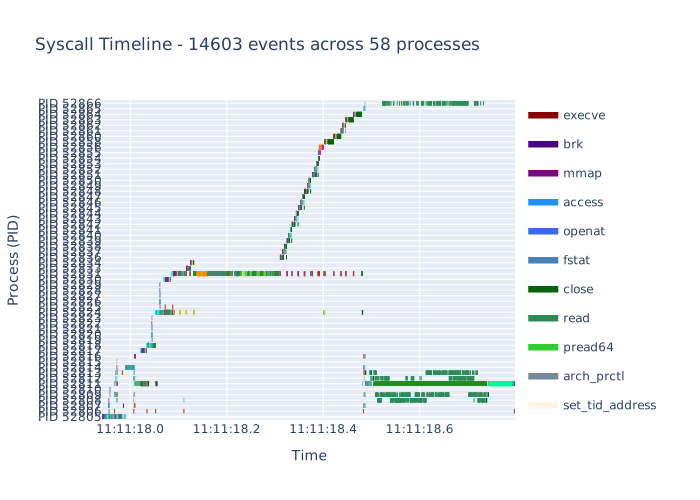
📊 Interactive visualizations for timeline and process analysis
🧵 Multi-threading support with process relationship tracking
To use StraceTools, you first need to generate strace output from your application. You can do this by running:
strace -f -tt -T <other options> -o app_strace.out <your_application>You can find some sample strace output in the examples directory, they are generated using the following command:
- ls.strace.out:
strace -f -tt -T -s 16 -x -a 40 -o examples/ls.strace.out ls -al /
You can install StraceTools directly from PyPI using pip:
pip install stracetoolsfrom stracetools import StraceParser, StraceAnalyzer
# Parse strace output
parser = StraceParser()
events = parser.parse_file("app_strace.out")
# Analyze the results
analyzer = StraceAnalyzer(events)
# Quick insights
print(f"Processes: {len(analyzer.get_pids())}")
print(f"Syscalls: {len(analyzer.get_syscall_names())}")
print(f"Duration: {analyzer.events[-1].timestamp - analyzer.events[0].timestamp}")
# Brief overview
print(analyzer.summary())- Complete strace parsing with multi-threading support
- Comprehensive filtering and analysis API
- Rich statistics and insights
- Interactive timeline Gantt charts
- Process activity visualization
- Official publication on PyPI -- since v0.1.0
- Lazy, chainable query interface -- since v0.2.0
- Enhance processing speed for large strace files -- since v0.2.1 using batch processing
- Export to CSV/JSON for further analysis
- Complete visualization suite (frequency charts, duration histograms)
- Integration with profiling tools
- Python 3.8+
- Core dependencies: None (pure Python)
- Visualization:
plotly>=5.0,numpy>=1.20
We welcome contributions! Whether it's:
- 🐛 Bug reports and feature requests
- 📖 Documentation improvements
- 🔧 Code contributions (parsing improvements, new analysis methods)
- 📊 Visualization enhancements
# Initialize parser
parser = StraceParser()

# Parse strace output from a string
event = parser.parse_string("52806 11:11:17.955673 nanosleep({tv_sec=0, tv_nsec=20000}, NULL) = 0 <0.000102>")

# Parse strace output file
events = parser.parse_file("app_strace.out")# Initialize analyzer with parsed events
analyzer = StraceAnalyzer(events)
# Get all PIDs
pids = analyzer.get_pids()
# Get all syscall names
syscall_names = analyzer.get_syscall_names()
# Process information
process_info = analyzer.get_process_info(1234)
print(f"Runtime: {process_info.last_seen - process_info.first_seen}")
print(f"Syscalls: {process_info.syscall_count}")
print(f"CPU time: {process_info.total_duration:.3f}s")
# Syscall statistics
read_stats = analyzer.get_syscall_stats("read")
print(f"Average read duration: {read_stats.avg_duration:.6f}s")
print(f"Error rate: {read_stats.error_count / read_stats.count:.1%}")
# Top syscalls by frequency or duration
top_frequent = analyzer.get_top_syscalls(10, by='count')
top_expensive = analyzer.get_top_syscalls(10, by='duration')
# Timeline analysis
timeline = analyzer.get_timeline_summary(bucket_size=timedelta(seconds=1))Individual Filters (before v0.2.0)
# Filter by process
events_1234 = analyzer.by_pid(1234)

# Filter by syscall with argument matching
file_reads = analyzer.filter_by_syscall("read", args=["file.txt"])

# Filter by event type of signals
signal_events = analyzer.filter_by_event_type(TraceEventType.SIGNAL)

# Time-based filtering
recent_events = analyzer.filter_by_time_range(start_time, end_time)

# Performance analysis
error_calls = analyzer.filter_with_errors()
slow_calls = analyzer.filter_slow_calls(0.01) # > 10ms# Chainable filtering example
filtered_events = (
analyzer.query()
.by_pid(1234) # Filter by specific PID
.by_syscall_name(SyscallGroups.FILE_IO) # Filter by syscall group
.with_success() # Only successful syscalls
.collect(sort_by_timestamp=True) # Collect results
)A list of available query methods is:
by_pid(pids: int | Collection[int])- Filter events by one or more PIDs.by_syscall_name(names: str | Collection[str])- Filter events by one or more syscall names.by_syscall_args(required_args: list[str])- Filter events by required arguments in syscall.by_type(event_type: TraceEventType)- Filter events by their type (e.g., SYSCALL, SIGNAL, EXIT).by_time_range(start: datetime, end: datetime)- Filter events that occurred within a specific time range.with_errors()- Filter events that resulted in an error (i.e., have a non-null error_msg).with_success()- Filter events that were successful (i.e., have a null error_msg).slow_calls(min_duration: float)- Filter events that took longer than a specified duration (in seconds).by_filename_regex(pattern: str)- Filter events by matching the filename against a regex pattern.
We provide a set of default syscall groups for easier filtering:
FILE_IO, FILESYSTEM, NETWORK, PROCESS, MEMORY, SYNC, SIGNAL, IPC, IOCTL, SECURITY, SYSINFO.
visualizer = StraceVisualizer(analyzer, color_map_file="your_color_map.json", auto_fillup=False)

# Interactive Gantt chart timeline
gantt_fig = visualizer.plot_timeline_gantt(
    pids=[1234, 5678],              # Filter specific processes
    syscalls=["read", "write"],     # Filter specific syscalls
    max_events=4000,                # Limit for performance
)
gantt_fig.write_html("gantt.html")

# Process activity timeline
activity_fig = visualizer.plot_process_activity()
activity_fig.show()You can customize the color mapping for syscalls by providing a JSON file with the following structure:
{
  "_category_file_io": "File I/O operations - Green shades",
  "read": "#2E8B57",
  "write": "#228B22"
}
If you don't provide a color map file (or set it to None), our StraceTools will use our default color mapping.
In case the color map does not contain a specific syscall, depending on the auto_fillup parameter, it will either use a random color or a gray color.
Apache License 2.0 - see LICENSE file for details.
Built for developers and system administrators who need deeper insights into application behavior. Inspired by the need for modern, programmable strace analysis tools.
If you find our library useful, please consider starring ⭐ the repository and citing it in your projects! Your support helps us continue improving StraceTools.